
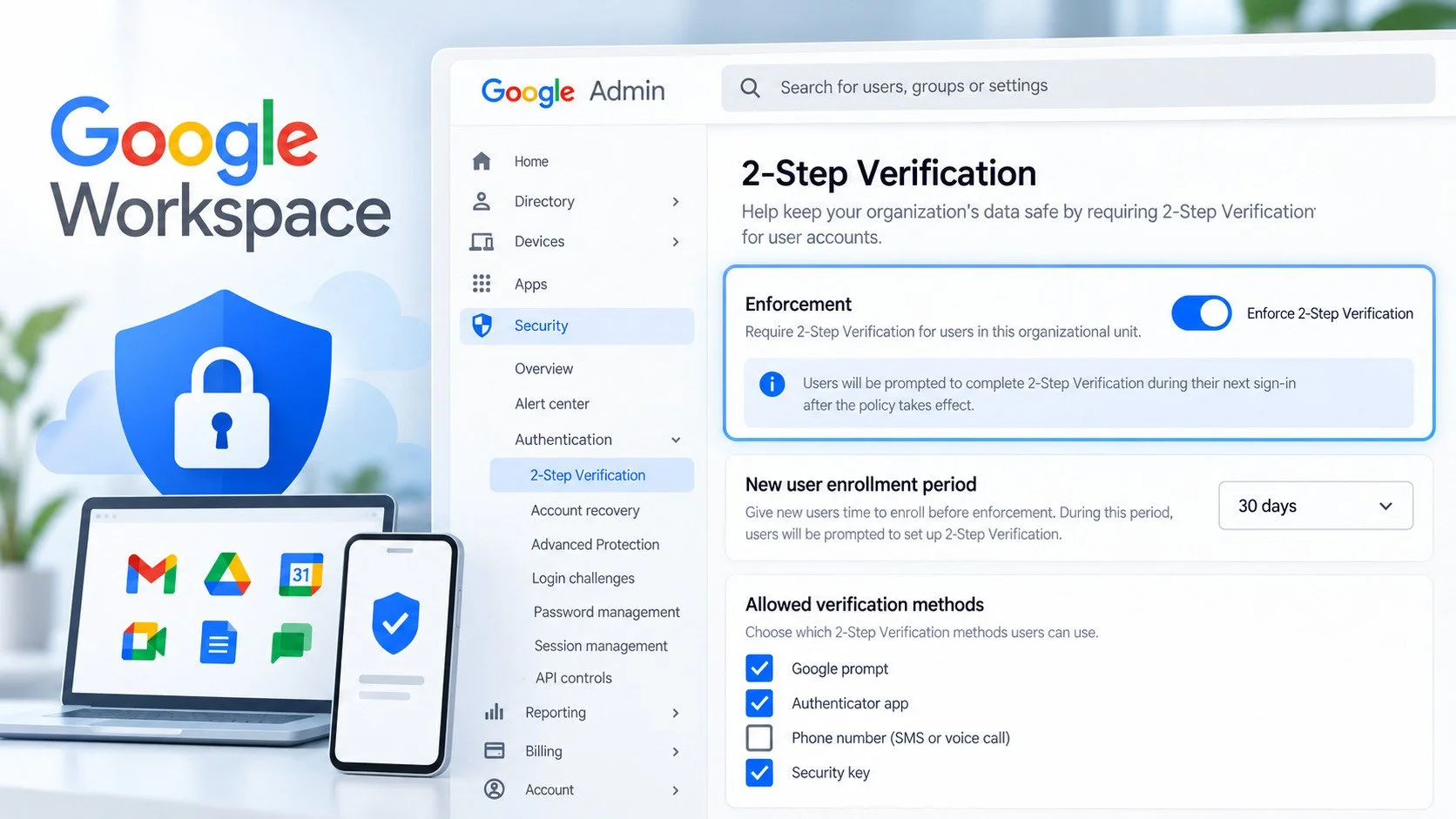
Short Answer
To enforce 2 Step Verification in Google Workspace without locking anyone out: allow 2SV and let people enroll first. Confirm who is actually enrolled, pilot enforcement on a small organizational unit and set a new user enrollment period so new hires aren't blocked on day one. Lastly, test the admin recovery path before you need it.
The settings are not complicated. The rollout is where organizations get into trouble.
Allowing 2SV and Enforcing It Are Two Different Settings
Allowing 2-Step Verification lets users enroll if they want to. Enforcing it makes enrollment a condition of signing in for every account the policy covers.
Both live at Security > Authentication > 2-Step Verification and both require super administrator access.
Google's documented sequence is to allow first, let people enroll, confirm enrollment and only then enforce. Allowing 2SV by itself doesn't force users to enroll; enforcement is the step that can create lockouts if users aren't ready.
Pilot First and Give New Hires an Enrollment Window
Test enforcement on a small organizational unit first. a Carter Systems IT recommendation rather than a Google requirement, but it catches problems while they're still a conversation instead of an incident. A useful pilot OU has an administrator, an ordinary employee and a test account.
One warning about your own account. If you hold super admin and lock yourself out, recovery runs through domain ownership verification and takes real time. Make sure a second super admin exists and is enrolled first — the subject of Google Workspace Super Admin Best Practices.
Then set the new user enrollment period. Without it, a new hire needs to sign in to configure security while the policy stops them signing in. Google lets you configure that window from 1 day to 6 months, during which a newly created user can sign in with a password alone.
I wouldn't give anyone six months. A few days to a week suits most companies at this size. Note the scope, though: this helps new users only, existing staff are the separate problem below.
Choosing the Allowed Methods
Google gives you three enforcement choices: any supported method, any method except text and voice codes,or Only security key.
That third label is misleading if you read it literally. An administrator could reasonably conclude every employee needs to buy and carry a USB key. That isn't the case, Google's documentation states the setting accepts both hardware security keys and passkeys. Also, both provide the same level of phishing protection.
A passkey can live on a phone, a laptop or a compatible hardware key unlocked by a screen lock, fingerprint or face. For many teams, that means stronger phishing resistant enforcement may not require buying hardware security keys for every user.
Why move this direction? Passkeys and security keys are phishing resistant: a one time code can be typed into a convincing fake login page, while a passkey is bound to the real domain and won't sign for a lookalike. MFA Isn't Enough covers that attack in detail.
One distinction worth keeping straight: using a passkey as a second factor is not the same as going passwordless. Workspace can use passkeys as a 2SV method; separately, an administrator can let users skip passwords entirely. Those are different policy decisions. Strengthen the factor now, evaluate passwordless later.
Before You Enforce: Find Out Who Will Break
Check enrollment but know the report lags. The Security report at Reporting > User Reports > Security shows enrollment status and requires the Reports administrator privilege. Google notes the data can lag by up to 48 hours. For a real time answer on one person, open their account under Directory > Users and check their security settings directly.
If you're dropping text and voice codes, find those users first. Google documents the login_verification Login Audit event, where a login_challenge_method value of idv_preregistered_phone identifies users authenticating with text or voice codes. Pull that list and move those people before enforcement, not after.
Watch the organizational unit precedence trap. In Google Workspace generally, configuration group settings override organizational unit settings. But for 2-Step Verification specifically, Google documents that a policy set on a child organizational unit always takes precedence over a configuration group setting. The reverse of the usual rule.
The consequence: if you build an "exempt from 2SV" configuration group to stage your rollout and someone in it sits in a child OU that enforces, the child OU wins and they get locked out anyway. Check for child OU policies underneath your exempt group before you rely on it.
A Safe Rollout Sequence
Allow 2SV, leaving enforcement off. Tell people what's coming, which method you want and the date.
Enroll yourself and a second super admin first.
Pick a small pilot OU and enroll those accounts in the method you intend to require.
Run your checks enrollment report, real time spot checks, the audit event lookup if you're dropping SMS. Child OU policies under any exempt group.
Test recovery on a pilot account and set the grace period now if you're using "Only security key." Your first recovery attempt shouldn't happen while someone senior is locked out before a meeting.
Configure the new user enrollment period and add 2SV enrollment to onboarding.
Enforce, immediately or from a date. Google notes date based enforcement can begin within roughly 24 to 48 hours of the chosen date, so use immediate enforcement if timing matters.
Review periodically. Enforcement drifts as people join, leave and change devices.
When Someone Gets Locked Out
Google documents several causes: moving unenrolled users into an enforcing OU, tightening the required method and a user removing their last second step without adding a new one.
Resetting the password does not fix it. If the lockout is caused by the account no longer satisfying the organization's 2-Step Verification policy, resetting the password alone does not resolve that policy mismatch.
The recovery path is admin generated backup verification codes:
Directory > Users > [the user] > Security > 2-Step Verification > Get Backup Verification Codes
Send the user one code through a separate channel; they restart sign in and use it at the second step prompt. Creating new codes invalidates any existing code, so generate once. Google prefers this over moving the locked out user into an OU or configuration group where 2SV isn't required. That restores access by removing the protection.
One permission detail worth knowing before you need it: generating codes for another administrator requires super admin.
Under "Only security key," the grace period is something you configure in advance. Users in that mode cannot generate their own backup codes, an administrator must. And the window in which an admin generated code works is the grace period you set when you configure enforcement; it does not start when you generate the code. Enforce without setting one and you don't have this recovery path when you need it.
A code restores access; it doesn't fix the account. Walk the user through enrolling a real second factor in the same session, or you'll be generating codes again next week.
Troubleshooting: Which Policy Actually Applies?
A user's security page indicates whether 2-Step Verification is currently enforced across your organization. Wording that confuses people, because a colleague may sign in with just a password and nothing happens. The explanation is scope: 2SV settings apply to organizational units or configuration groups, not as one identical rule for every account.
So when troubleshooting one person, don't rely on that label. Check the policy that actually applies to them at Security > Authentication > 2-Step Verification. Their OU, whether settings are inherited or overridden, and whether a configuration group is involved.
Frequently Asked Questions
How long can the new user enrollment period be?
From 1 day to 6 months, during which a newly created user can sign in with a password alone. A few days to a week suits most small companies; longer windows effectively exempt new hires from the policy you just set.
Does "Only security key" require a physical USB key?
No. Google's documentation says the setting accepts both hardware security keys and passkeys. Also both provide the same level of phishing protection. Most people can enroll a passkey on a device they already carry.
Can I use passkeys without going fully passwordless?
Yes. Passkeys work as a 2SV factor whether or not passwordless sign-in is enabled. Seperate policy decisions, which makes passkeys easy to introduce incrementally.
An employee never enrolled and now can't sign in. What do I do?
Generate backup verification codes at Directory > Users > [user] > Security > 2-Step Verification, and send them one. Resetting the password won't help. Enroll them in a real second factor once they're back in.
Should I just turn off 2SV for a locked out user?
Google recommends backup codes instead, because the account stays protected while the user gets back in. Moving them into an OU or configuration group where 2SV isn't required restores access by removing the protection.
Take the Next Step
What starts as "turn on MFA" becomes a set of operational questions as a company grows: who is enrolled, which methods are allowed and who can recover an administrator account.
If you want the broader configuration in one place, the Google Workspace Setup Checklist covers the settings worth getting right early — not just 2SV.
👉 Get the Google Workspace Setup Checklist
If you'd rather not own this ongoing, Carter Systems IT builds these processes around Google Workspace, employee identity, access and onboarding for growing software and AI companies across the San Francisco Bay Area.
👉 Google Workspace Administration & Security
And if you'd like a second set of eyes on your current setup before you enforce anything:
👉 Book a Free 15-Minute Startup IT Discovery Call
Part of the Startup IT Playbook series.
Related Reading
MFA Isn't Enough: How to Secure Google Workspace Beyond 2-Step Verification — the threat model behind phishing-resistant methods.
Google Workspace Super Admin Best Practices — why a second super admin matters before you enforce anything.
Google Workspace Administration & Security — how Carter Systems IT runs identity and access for growing software and AI companies.
Sources Cited
Google Workspace Admin Help — Deploy 2-Step Verification: allowing versus enforcing, the "Only security key" option supporting both security keys and passkeys, the 1-day-to-6-month new user enrollment period, date-based enforcement starting within 24–48 hours, and identifying text and voice code users via the login_verification event
Google Workspace Admin Help — Avoid account lockouts when 2-Step Verification is enforced by your organization: documented lockout causes, exempt configuration group workflow, child organizational unit precedence over configuration group settings
Google Workspace Admin Help — User reports: Security: the 2-Step Verification enrollment column, the Reports administrator privilege, and the up-to-48-hour data delay
Google Workspace Admin Help — Recover an account protected by 2-Step Verification: generating backup verification codes, the grace period under "Only security key" enforcement, and why backup codes are preferred to removing 2SV coverage
Google Workspace Admin Help — Manage a user's security settings: new codes invalidating existing ones, super admin requirement for generating codes for another administrator, and the organization-level 2SV status shown on a user's security page
Google Workspace Admin Help — Protect your business with 2-Step Verification
Admin console paths and feature behaviour verified against Google Workspace Admin Help, October 2026. Google reorganizes the console and migrates these help pages regularly — confirm against current documentation before relying on a specific path.
